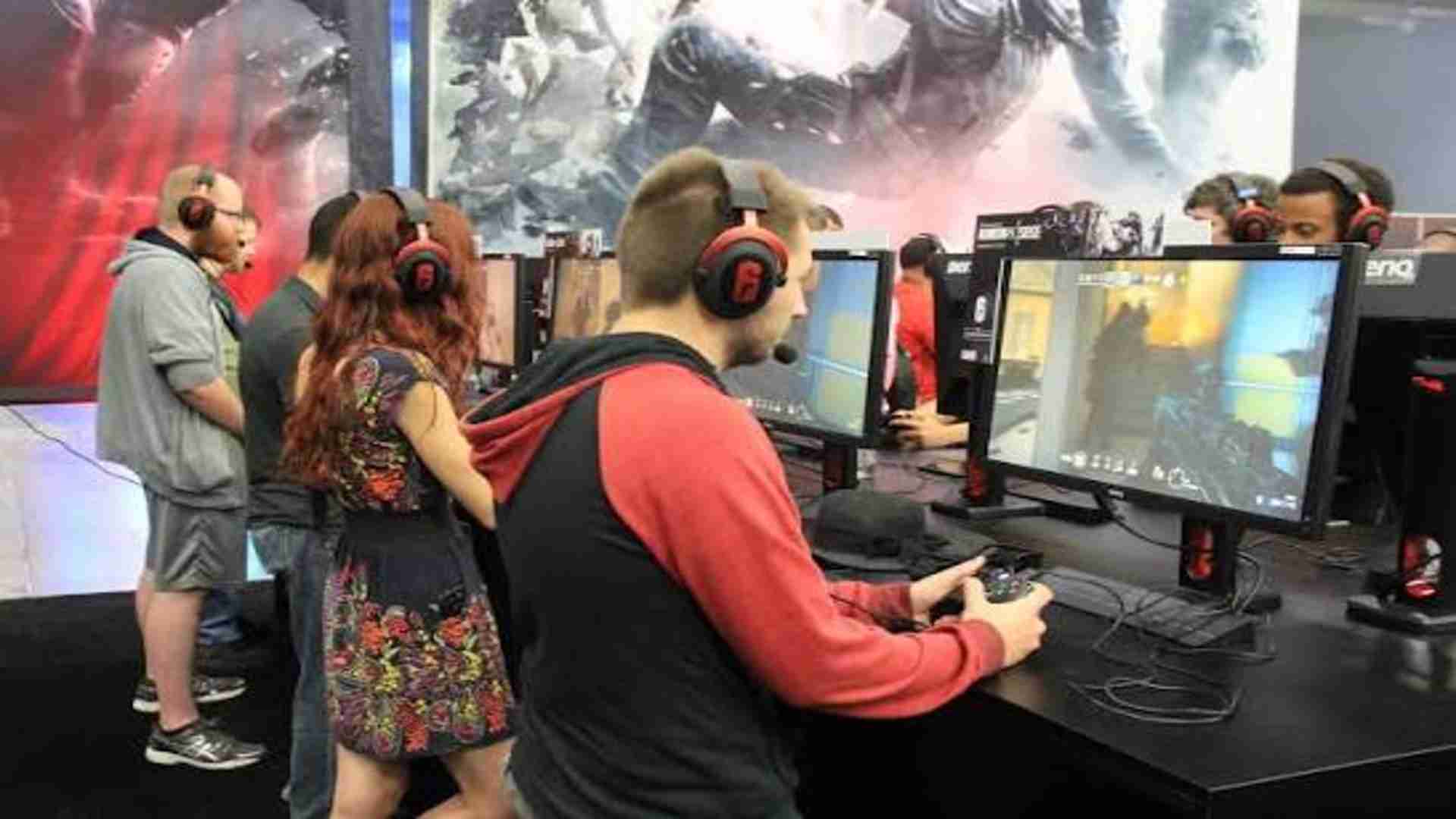
Optimizing your graphics driver settings is one of the most effective ways to boost frame rates without sacrificing visual clarity in modern PC games. The NVIDIA Control Panel offers granular control over global 3D settings, allowing players to fine-tune render queues, power management modes, and texture filtering quality. Following daily gaming news often highlights how driver updates introduce new toggles that keep older hardware competitive in demanding titles.
Optimizing Power Management and Low Latency Modes
Setting Power Management Mode to Prefer Maximum Performance ensures your graphics card runs at top clock speeds during active gameplay. This prevents sudden GPU downclocking, which can introduce micro-stuttering during intense action sequences.
Enabling Low Latency Mode to On or Ultra reduces the frame queue before rendering occurs. This setting directly lowers input lag, giving competitive players a much sharper response time in fast-paced shooters.
Refining Image Sharpening and Anti-Aliasing Features
Modern games often employ temporal anti-aliasing techniques that can leave images looking soft or slightly blurry. Utilizing NVIDIA Image Sharpening helps restore crisp edge details without introducing heavy performance penalties.
Setting Anisotropic Filtering to 16x enhances texture quality on surfaces viewed at sharp angles. Because modern GPUs handle this process effortlessly, it yields a massive boost in visual clarity for negligible impact on frame rates.
Managing Frame Rate Limits and Vertical Sync
Setting a global Frame Rate Limit slightly below your monitor's maximum refresh rate helps maintain smooth frame pacing. This keeps G-Sync operating smoothly within its optimal variable refresh rate range without adding input delay.
Disabling native Vertical Sync inside the control panel while leaving it managed in-game offers maximum flexibility. This combination helps eliminate screen tearing while allowing your display to deliver low-latency visual performance.
Texture Filtering and Pre-rendered Frames Adjustment
Configuring Texture Filtering Quality to High Performance frees up processing bandwidth for high-resolution rendering. It delivers a noticeable frame rate improvement in GPU-bound titles while keeping assets clean.
Setting Max Pre-Rendered Frames to 1 reduces the delay between input action and screen response. Fine-tuning these core settings establishes a stable baseline for high-performance PC gaming across all video game genres.